Native Past - User Tutorial
Covers Native Past 1.0.5 · Last updated
The complete guide to Native Past for iOS and Android — from choosing a nation to reading its history, learning its language, searching the records, and keeping your family research on your own phone.
Getting Started
Native Past teaches the history, stories, and living languages of Native American nations — 15 nations today, and more as their sources are verified — and carries a free research search over the Dawes Rolls and other public National Archives records. Every chapter, word, and figure cites where it came from, the way a reference book does.
The app is organized into five tabs along the bottom of the screen:
- History - each nation's story: chapters, stories, and notable figures
- Learn - the writing system first, then vocabulary in short lessons
- Research - the records search, your documents vault, and your family tree
- Profile - lessons completed, chapters read, and Native Past Pro
- Settings - your active nation, subscription, privacy, and sources
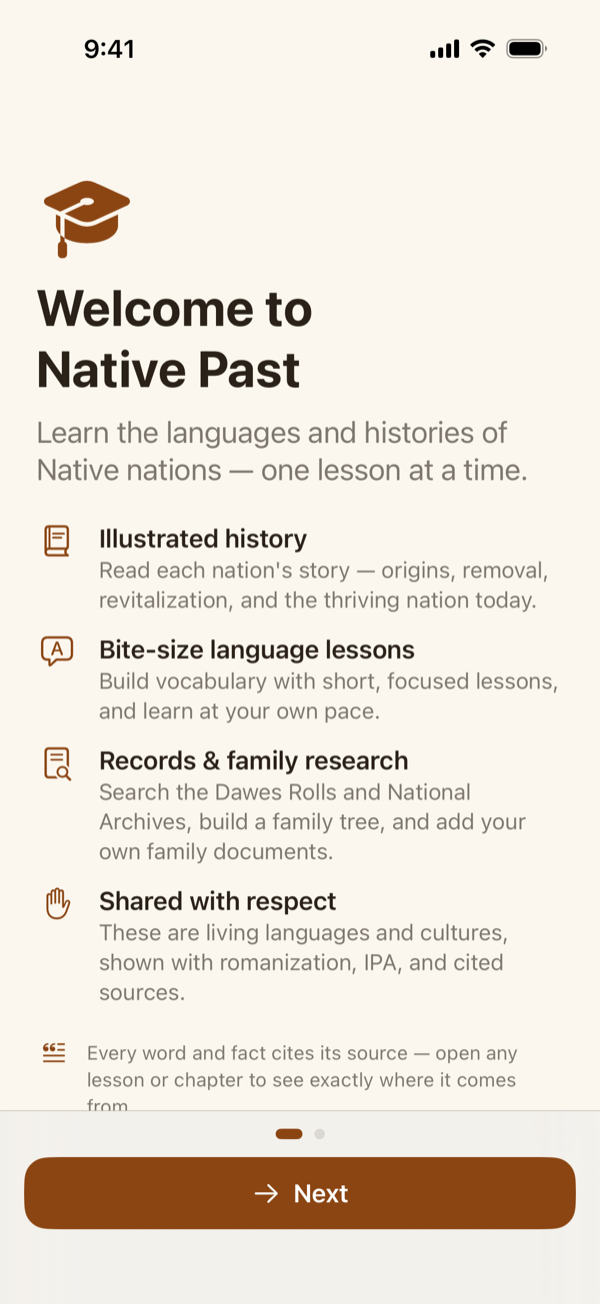
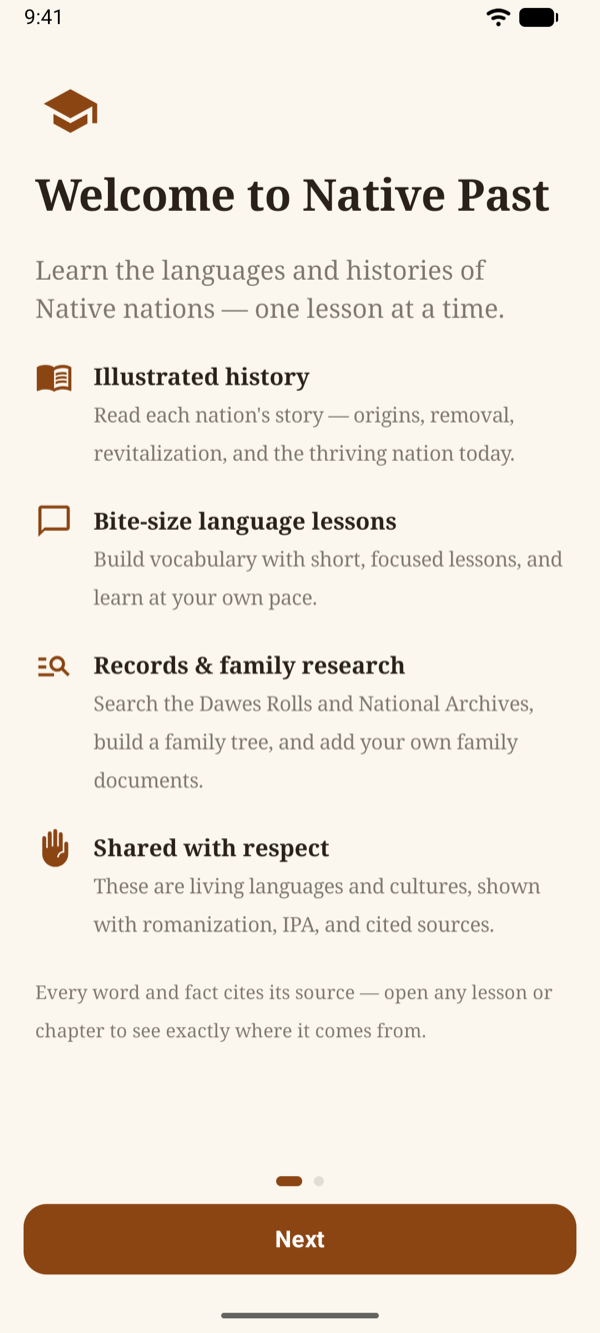
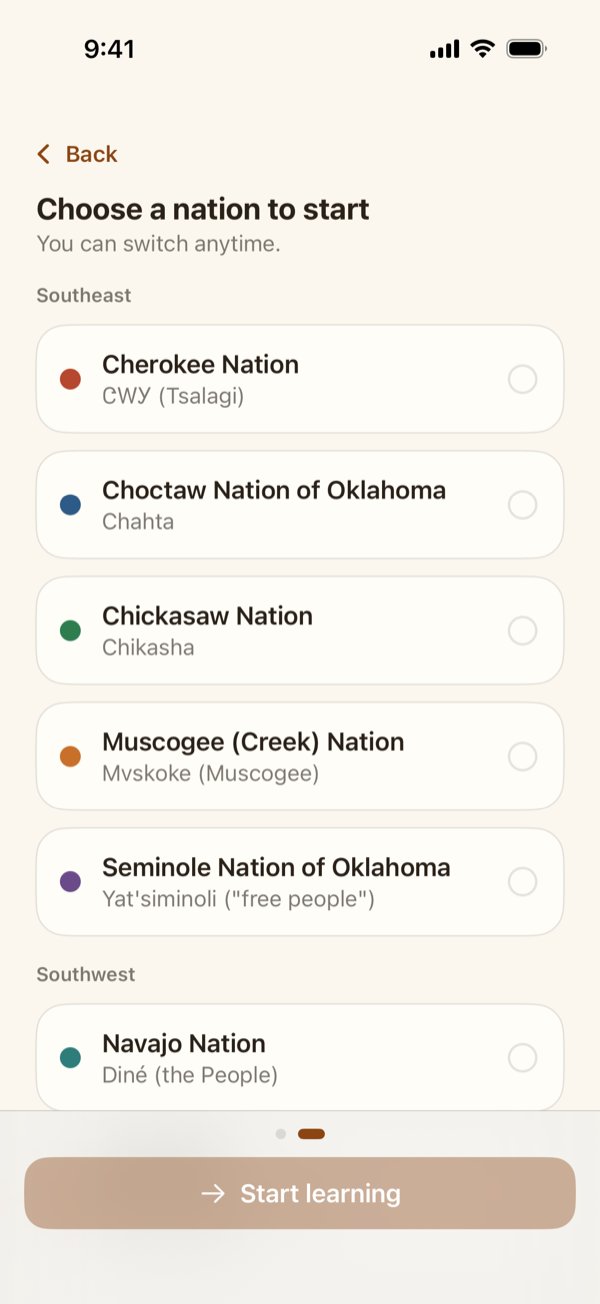
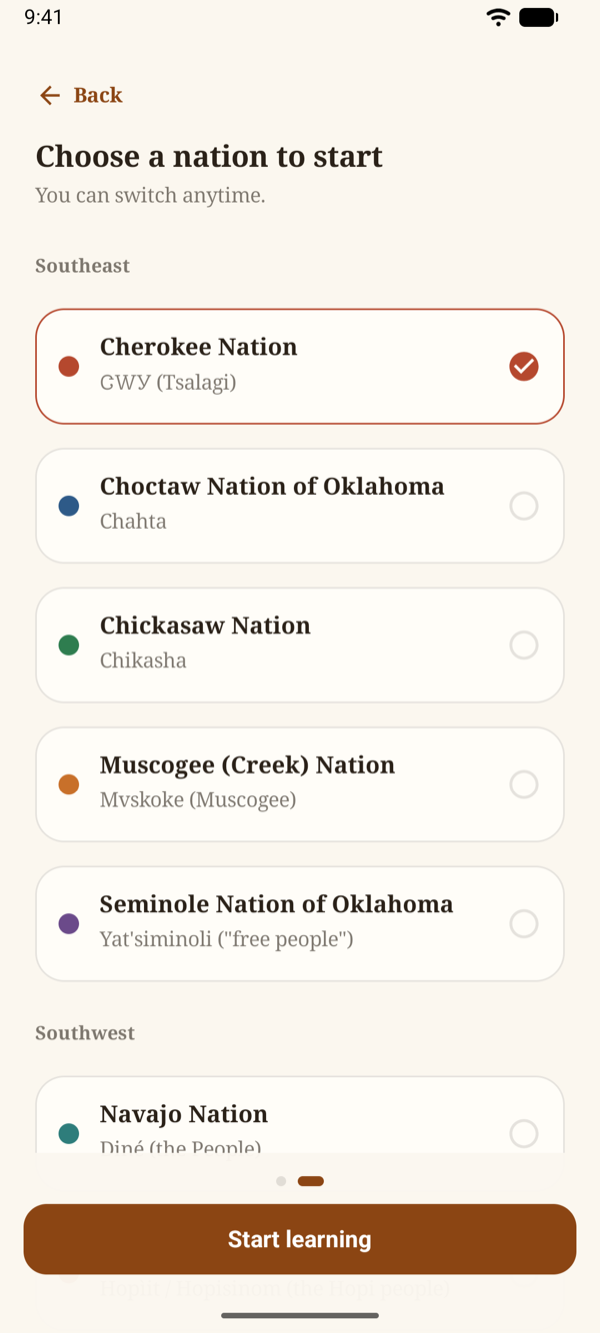
The first time you open Native Past, a short welcome explains the four things it does. Tap Next and choose a nation — nothing is chosen for you, and you can switch at any time from the History or Learn tab.
Note: Native Past is an independent educational project. It is not affiliated with, or endorsed by, any tribal government. Tribal citizenship and enrollment are determined solely by sovereign tribal nations.
Free vs Pro
- Free: everything in this tutorial. Full-screen ads appear only at natural pauses — after a lesson, between chapters, when you close a record — never inside a lesson, never in your first minutes, and never more than one every few minutes. A small banner sits at the bottom of the History, Learn, Research, and Profile screens — never in the reader or inside a lesson
- Pro: exactly the same app with every ad removed — see Native Past Pro
Reading a Nation's History
The History tab opens on your nation's page: numbered Chapters with a reading time, the nation's Stories, and its Notable Figures. Living nations are written in the present tense, because they are here now.
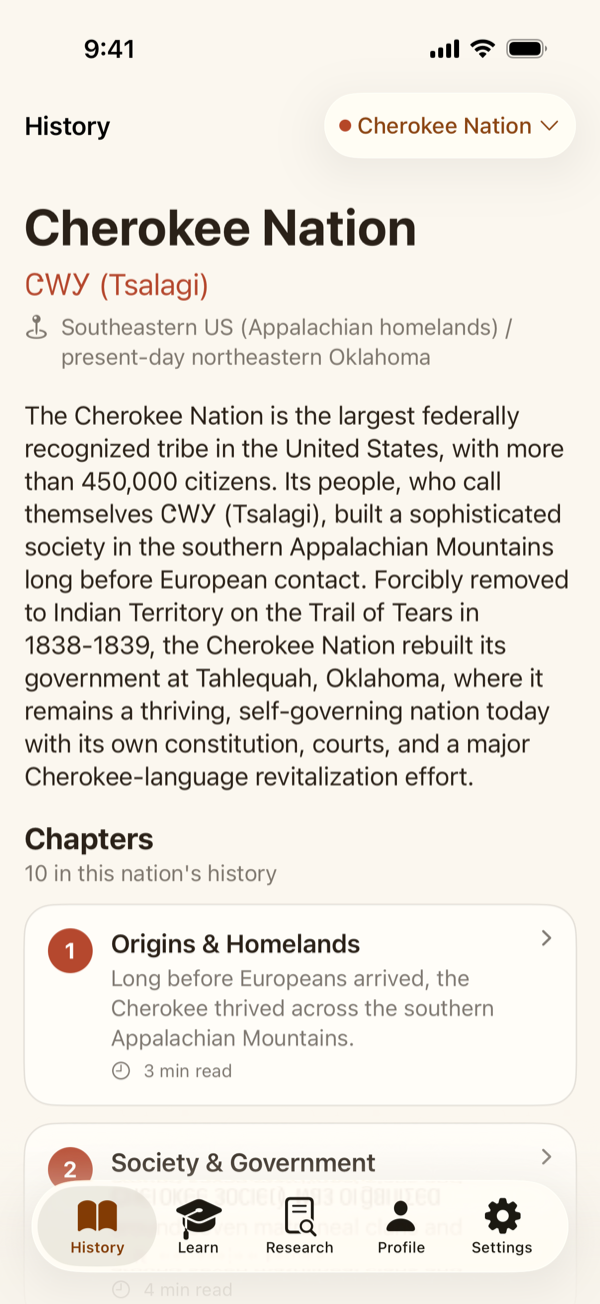
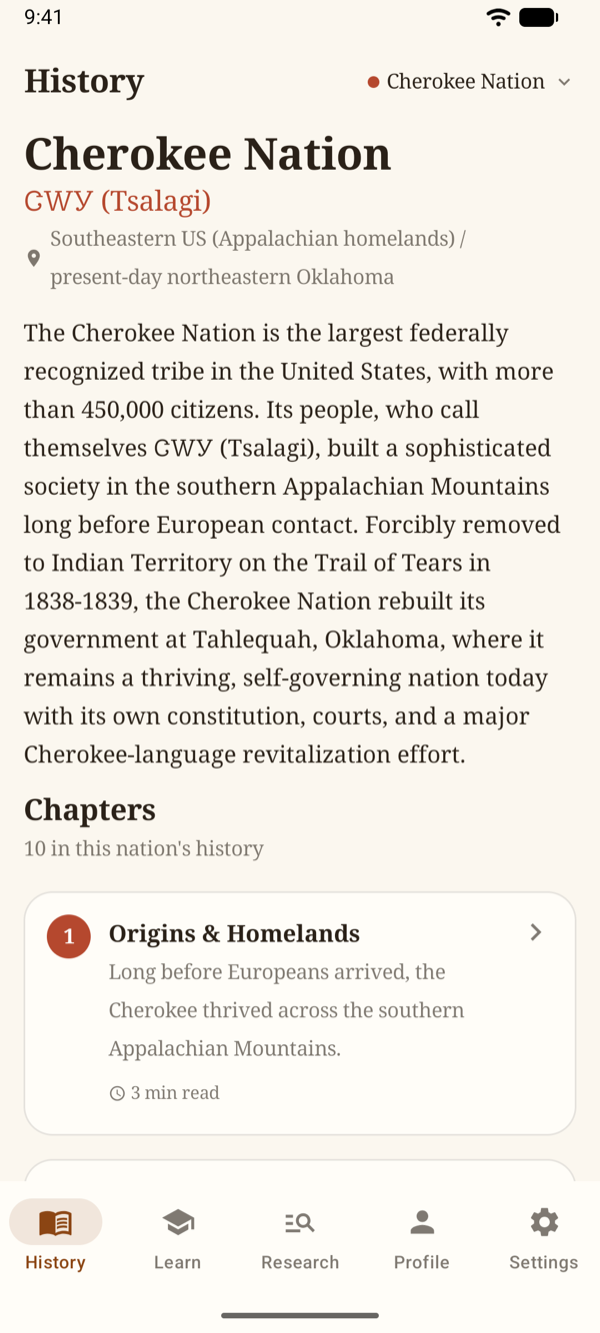
- Tap the nation's name at the top to open the Nations picker, grouped by region — Southeast, Southwest, Northern Plains, Southern Plains, Great Lakes, Northeast — with a search field once the list grows long
- A green check marks a chapter you've read; the Continue reading card takes you back to where you left off
- Read in order, the chapters tell the whole story — origins, removal, revitalization, and the nation today — but any chapter stands on its own
The Chapter Reader
Tap a chapter to read it. The reader is set in a book face with generous spacing, and every chapter ends with its Sources — tap one to open the original page.
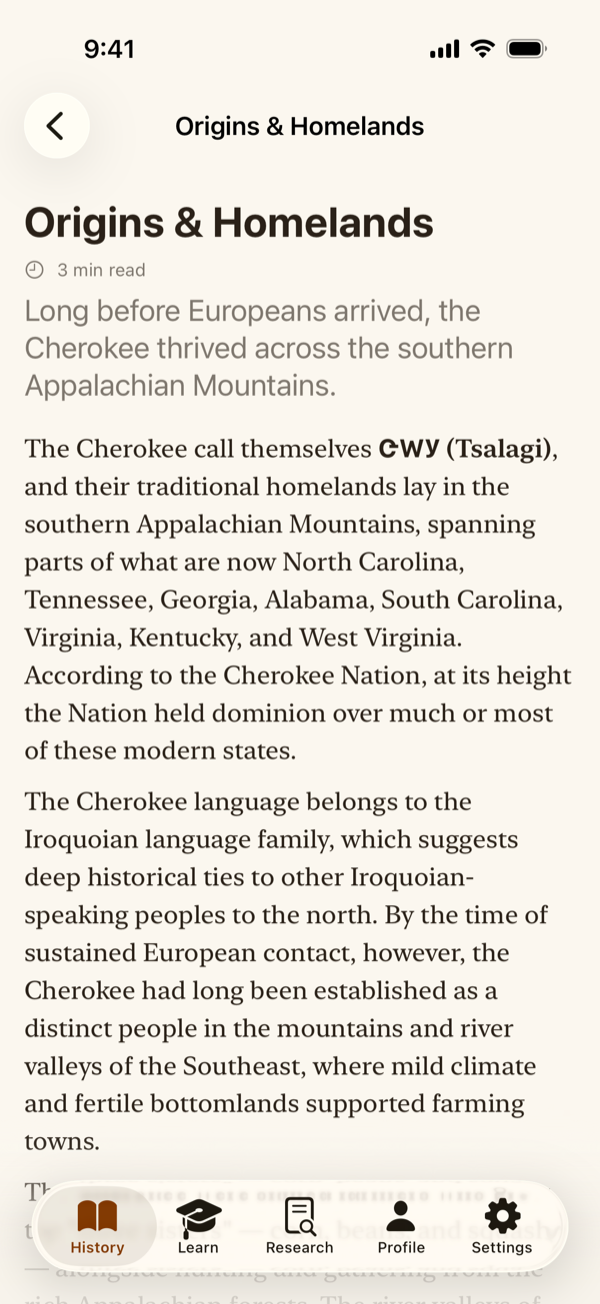
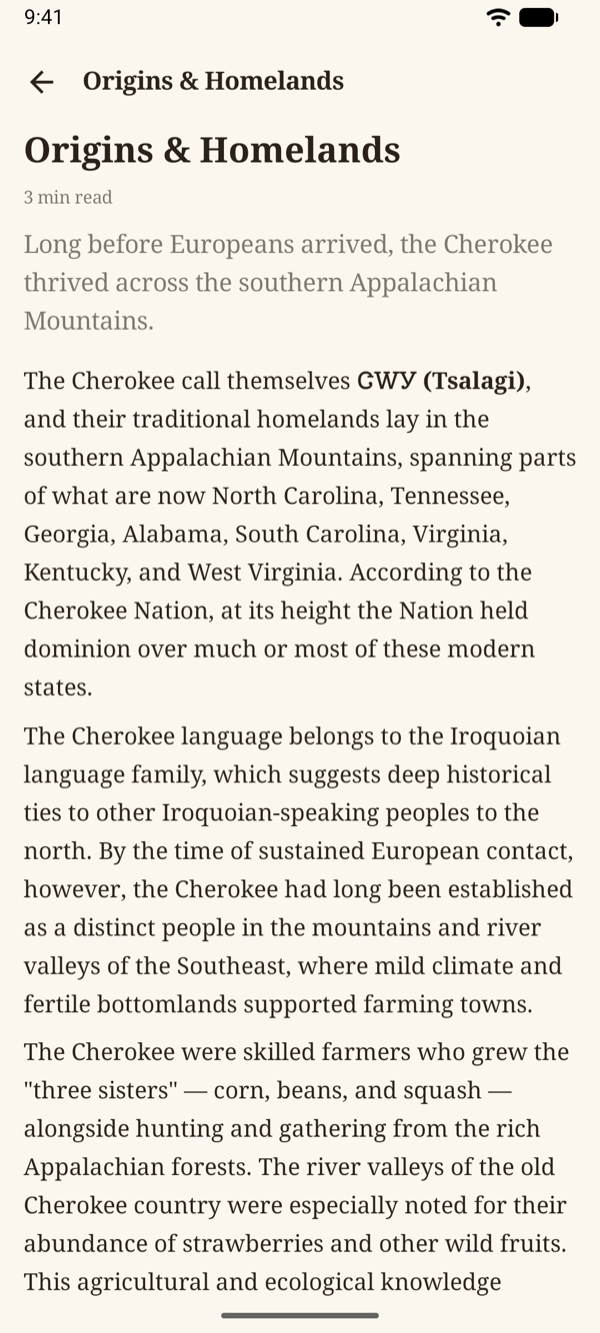
- Previous and Next at the bottom turn to the neighboring chapter in place, like turning a page
- Mark chapter as read records your progress; the badge becomes You've read this chapter, with Mark as unread if you'd like to come back to it fresh
- An ad never appears when you open a chapter — only, at most, when you turn or close one
Stories & Notable Figures
Below the chapters, Stories gathers publicly shared traditional stories and accounts, each with a Cultural Note on where it comes from and how it is shared. Notable Figures collects short biographies with key facts and — like everything else — their sources.
Shared with respect. Native Past includes only publicly shared, educational material. Sacred, ceremonial, or restricted knowledge is not included, and an account that can't be traced to a citable source is left out rather than guessed.
The Course Map
The Learn tab is your nation's language course, laid out as a map. Every course opens with Start here — the writing system, a syllabary or an alphabet, taught as short interactive lessons — and then moves into numbered Units of vocabulary.
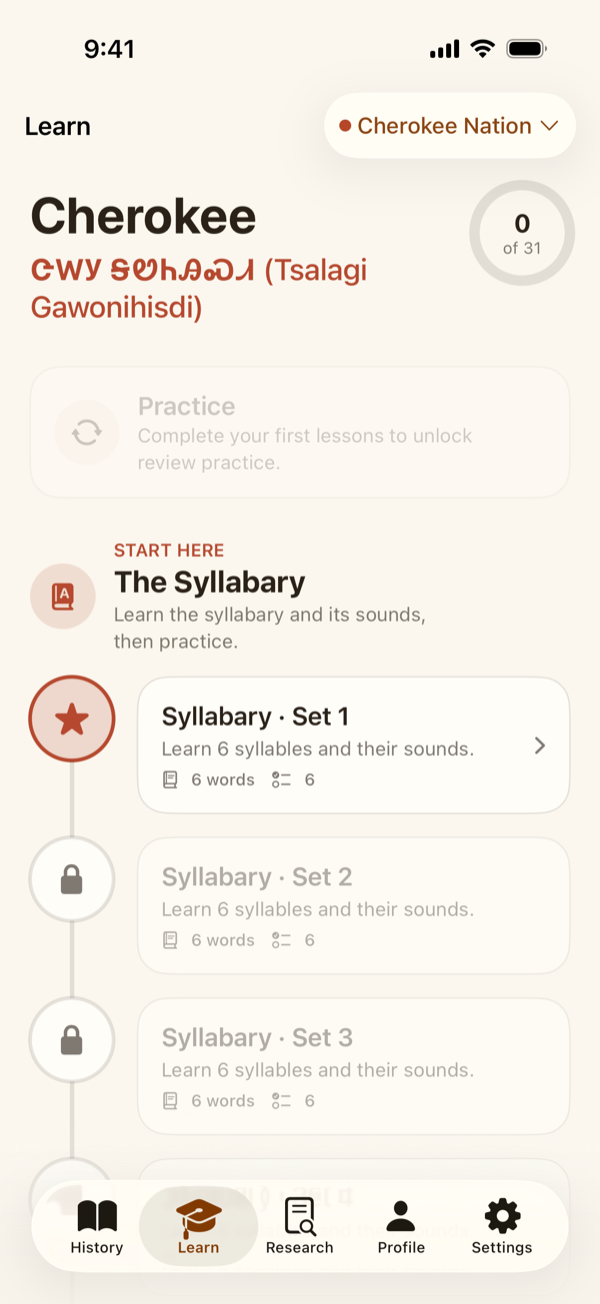
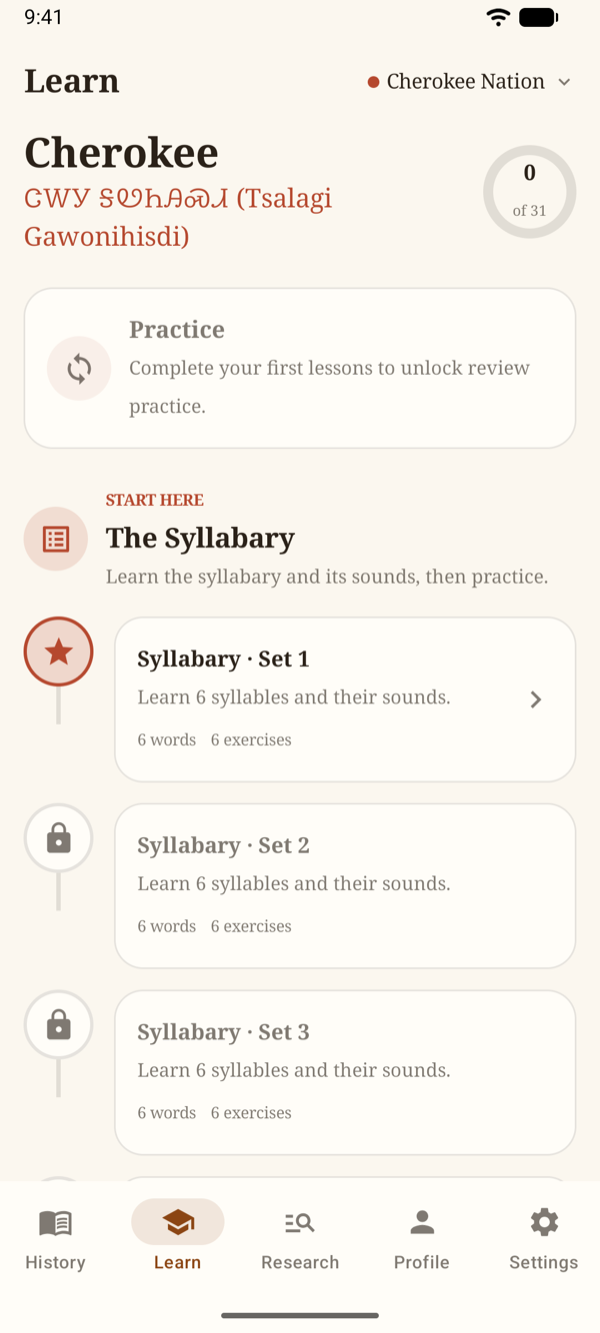
- Each lesson node shows how many words it teaches; a check appears once you've completed it
- The Practice card reviews the words from lessons you've finished — a no-stakes review you can repeat any time
- Under the Start here lessons, View the full chart opens the writing system as a reference, and Common phrases opens the Phrasebook
Note: Three nations — Hopi, Haudenosaunee, and Apache — have history but no language course yet, by deliberate decision: their communities' own protocols, or the number of distinct languages involved, mean a course can't yet be built from verified public sources. Their Learn tab says so plainly.
Lessons: Learn First, Then Practice
Every lesson teaches before it asks. It opens with Learn these words: one card per word, with the native script, a romanization, the IPA pronunciation, the meaning, and an example. Take your time — nothing is timed.
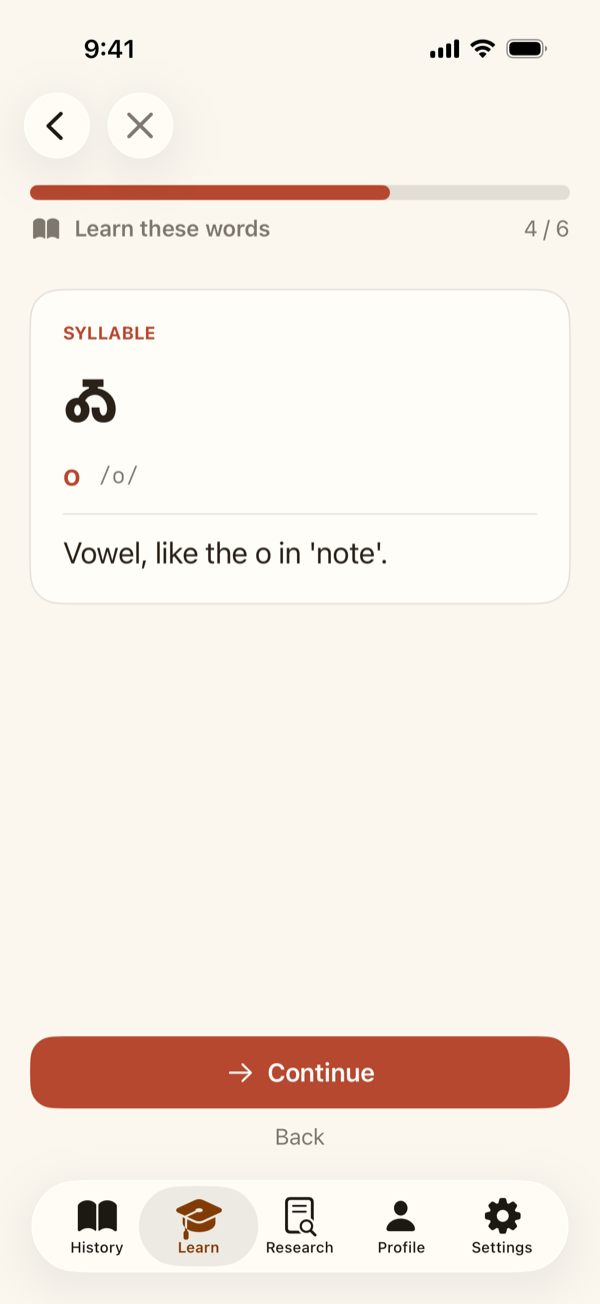
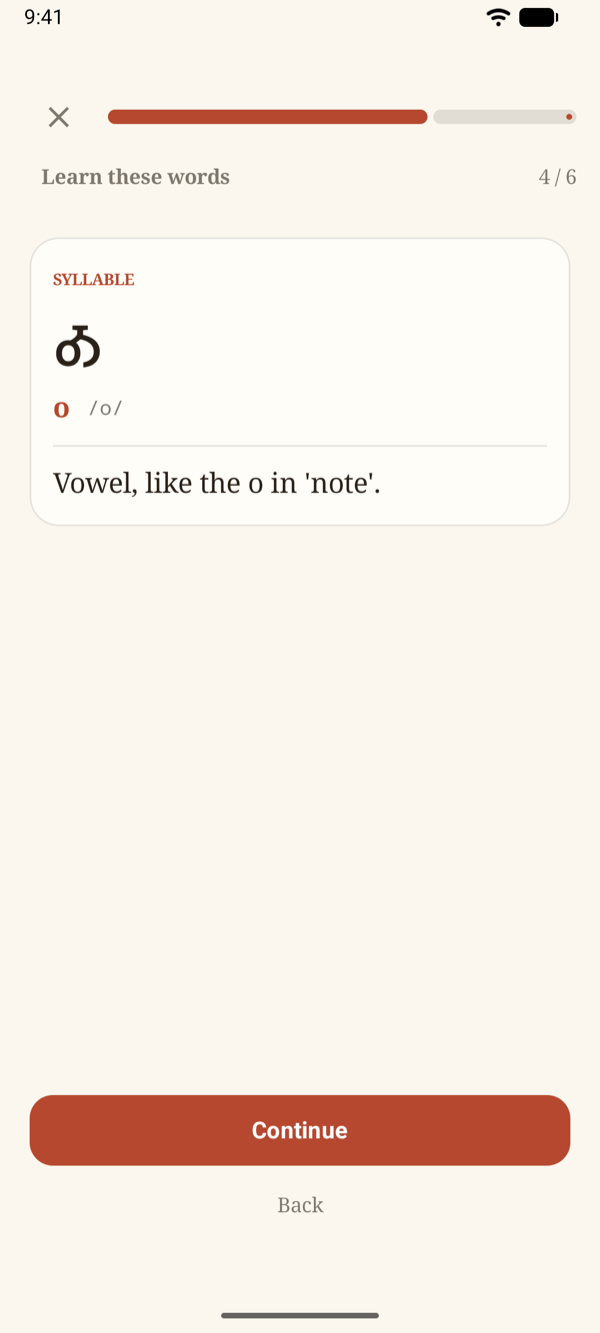
Then the questions begin: choose the meaning, match pairs, or type your answer and tap Check.
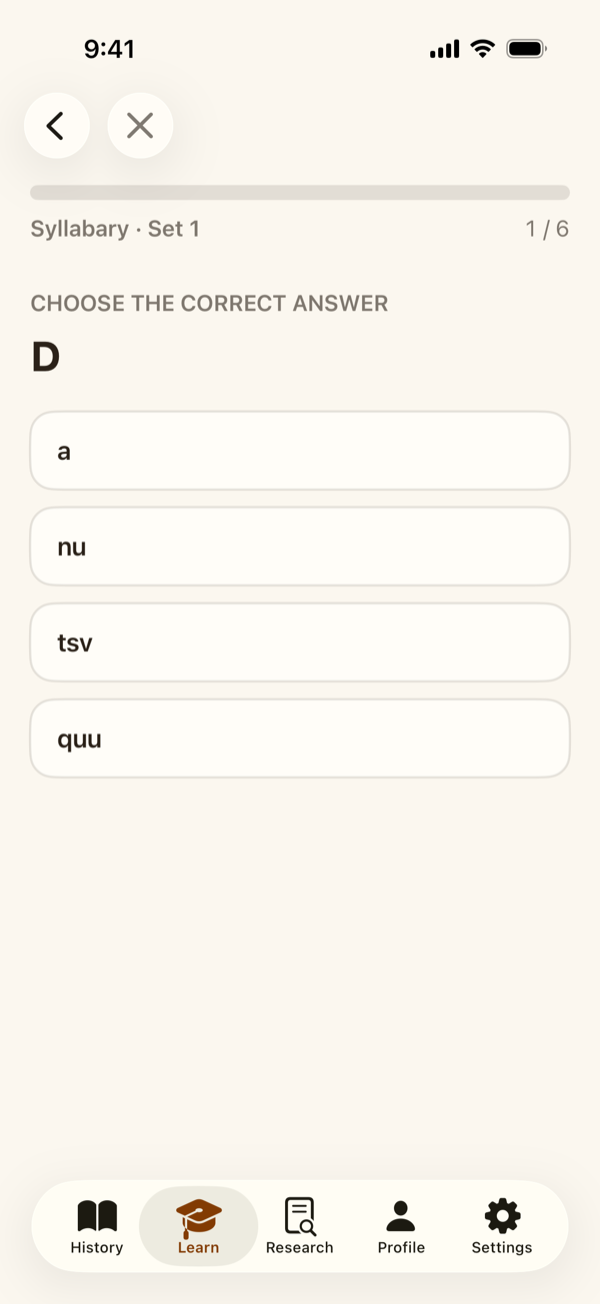
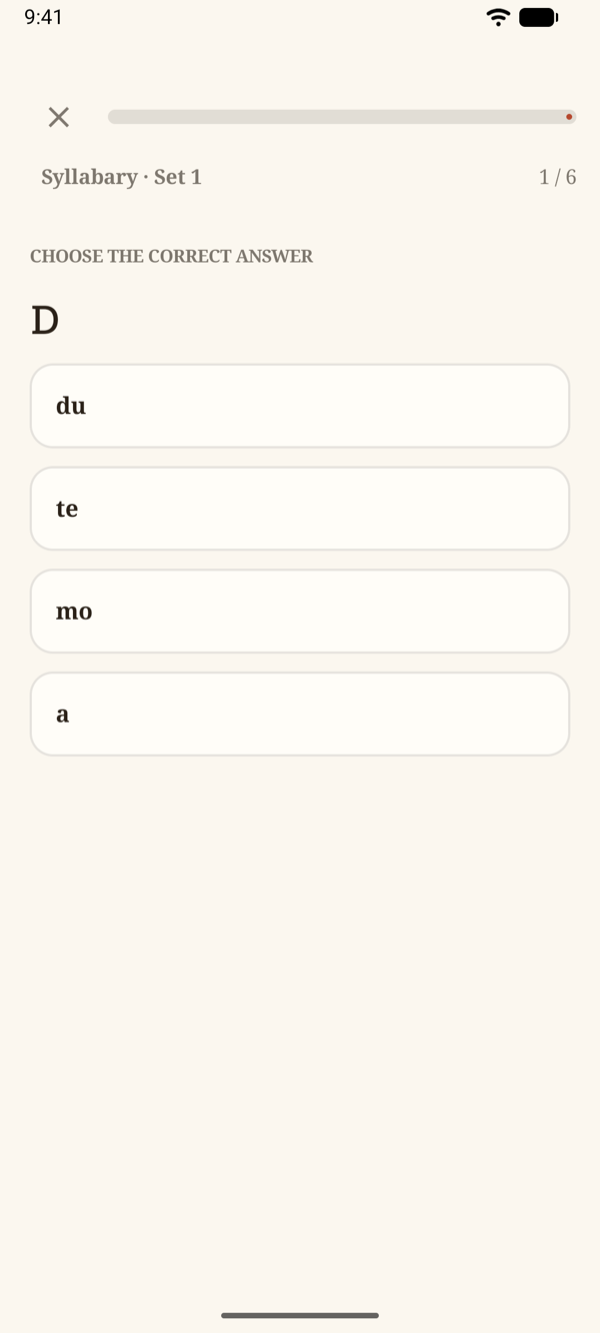
- A wrong answer simply shows the right one, and the lesson continues — there are no hearts, lives, or streaks. These are living heritage languages, not a game to grind
- Score 80% or better and the lesson is complete; the result screen shows your score, and you can take any lesson again
- Tap Back to leave a lesson at any time; nothing is lost
Note: Native Past does not yet play audio. Phones don't ship voices for these languages, and a synthetic voice would get them wrong — so each word carries a romanization and IPA instead.
Phrasebook, Practice & the Writing System
The Phrasebook (Common phrases on the course map) gathers everyday phrases by category, with cultural notes and sources. View the full chart shows every syllable or letter with its sound, so you can look one up in a second.
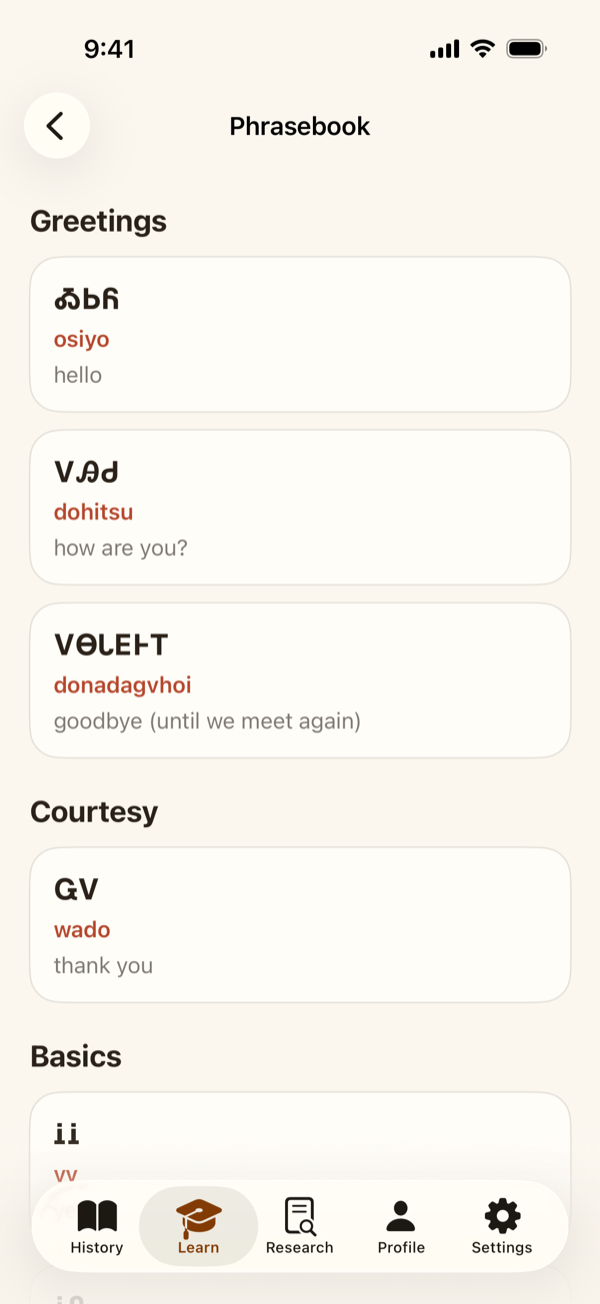
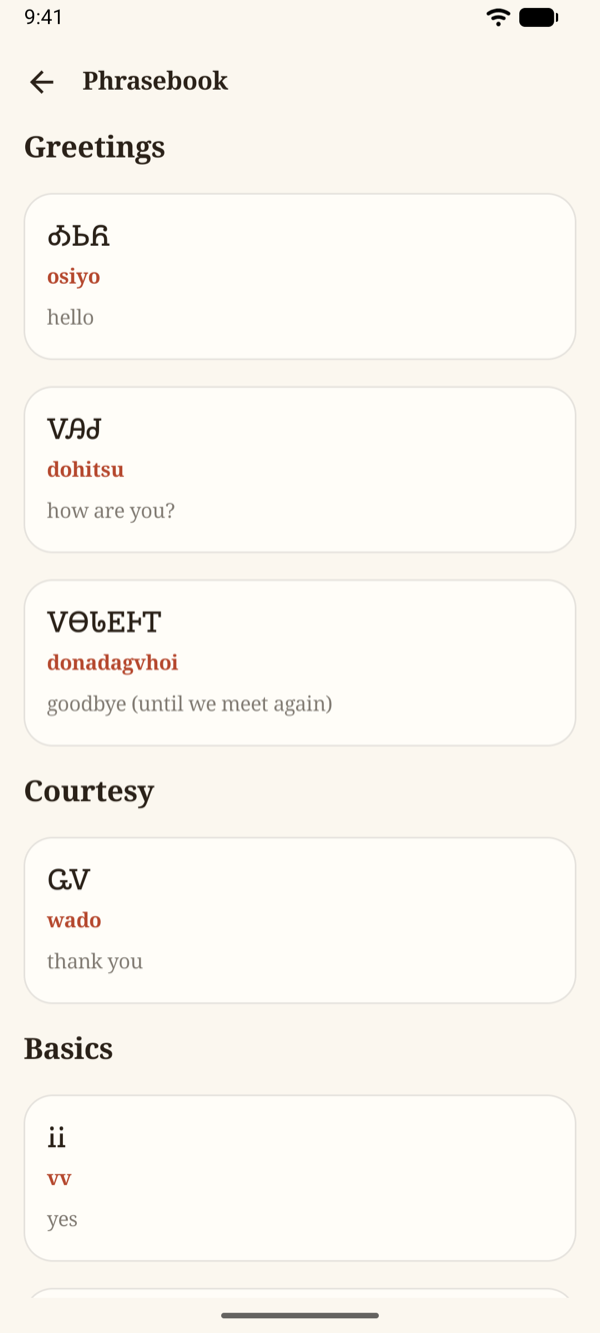
Nations that write their language in their own script are taught in that script — the Cherokee syllabary, or the Osage Nation's own orthography — alongside the Latin romanization.
Searching the Records
The Research tab has three sections. Search is the same records search as nativepast.com, in your pocket: 248,000+ records across the Dawes Rolls census cards and application jackets, the Guion Miller (Eastern Cherokee) applications, the 1896 applications, and more.
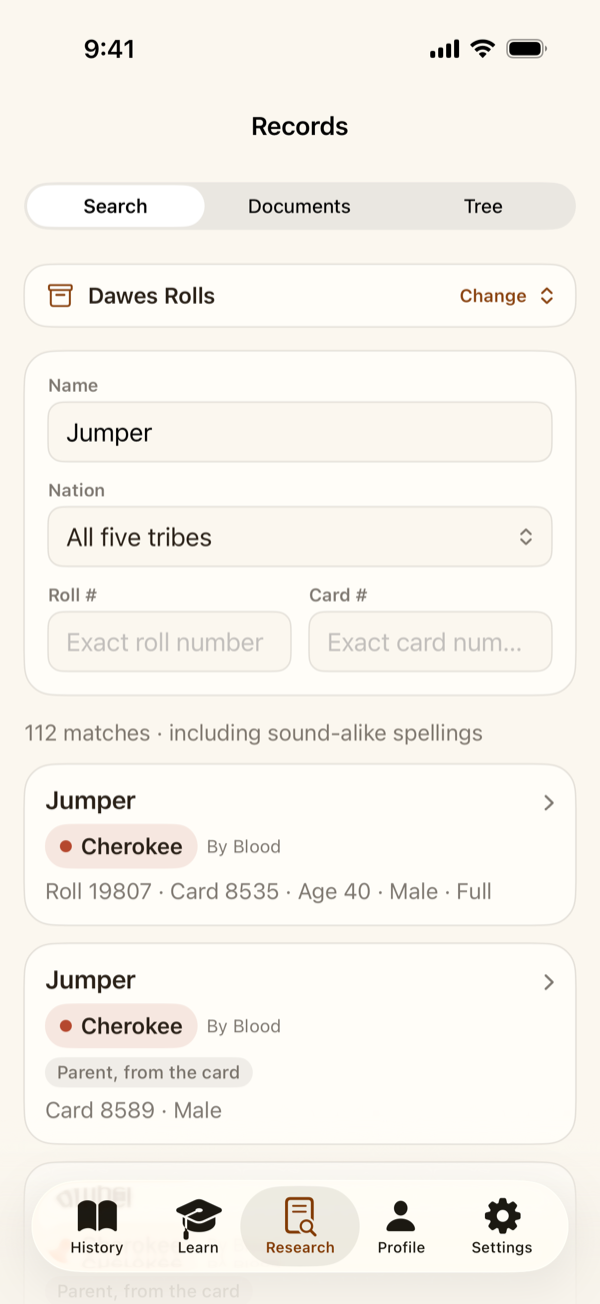
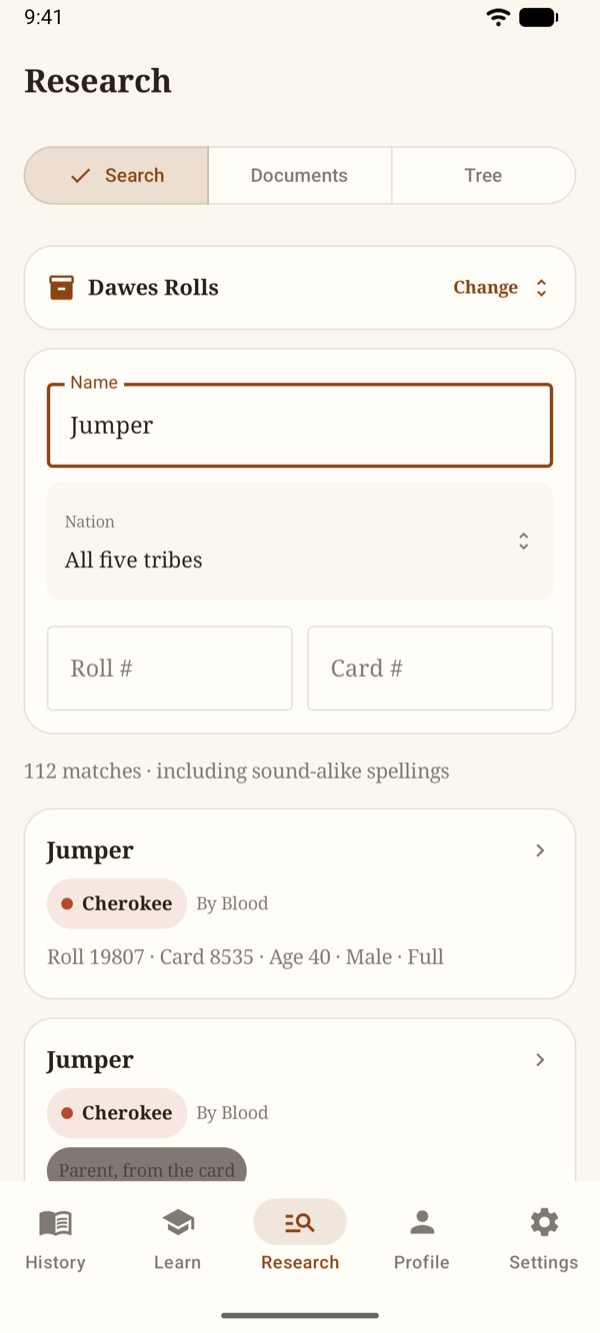
- Type a name — given name, family name, or both. The search forgives spelling and sound-alike variants
- Tap Change to pick a different record set; on the Dawes Rolls you can also narrow by nation, roll number, or card number
- Each result shows what kind of record it is — a final-roll entry, a card-only applicant, a parent named on a card — and any note the enrollment clerks struck onto it
- About this record set explains what the set is, where it comes from, and what it can and can't tell you
Reading a Record
Tap a result to open it. Everything on the record is shown exactly as the National Archives transcribed it — Native Past never fills a blank by guessing.
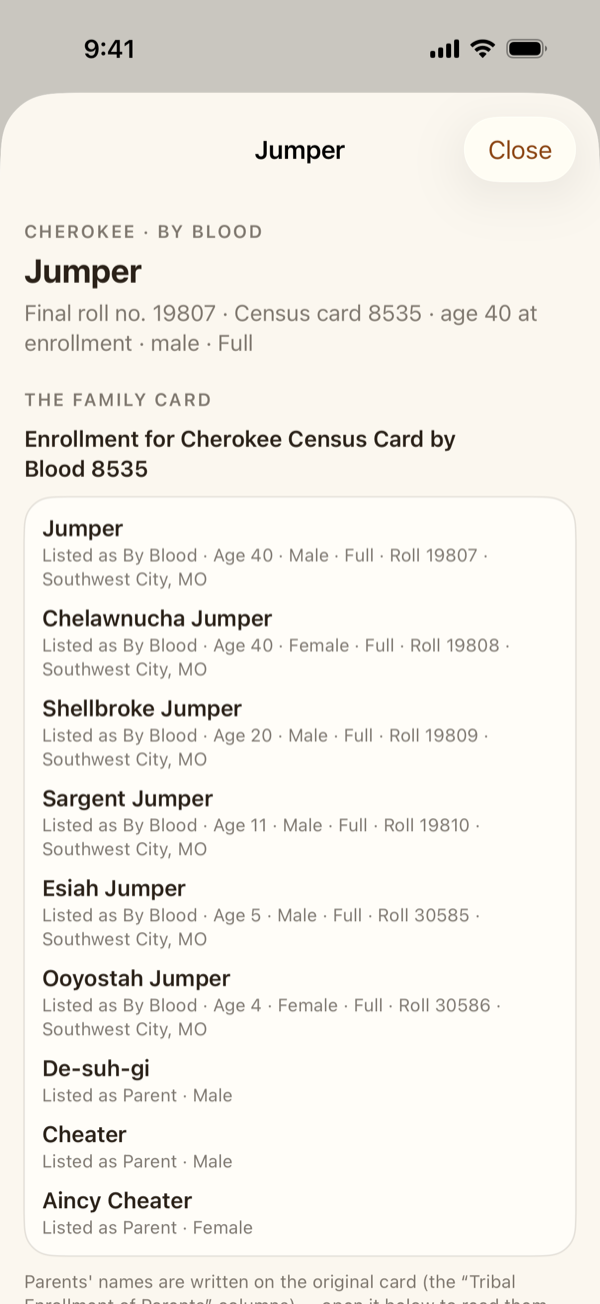
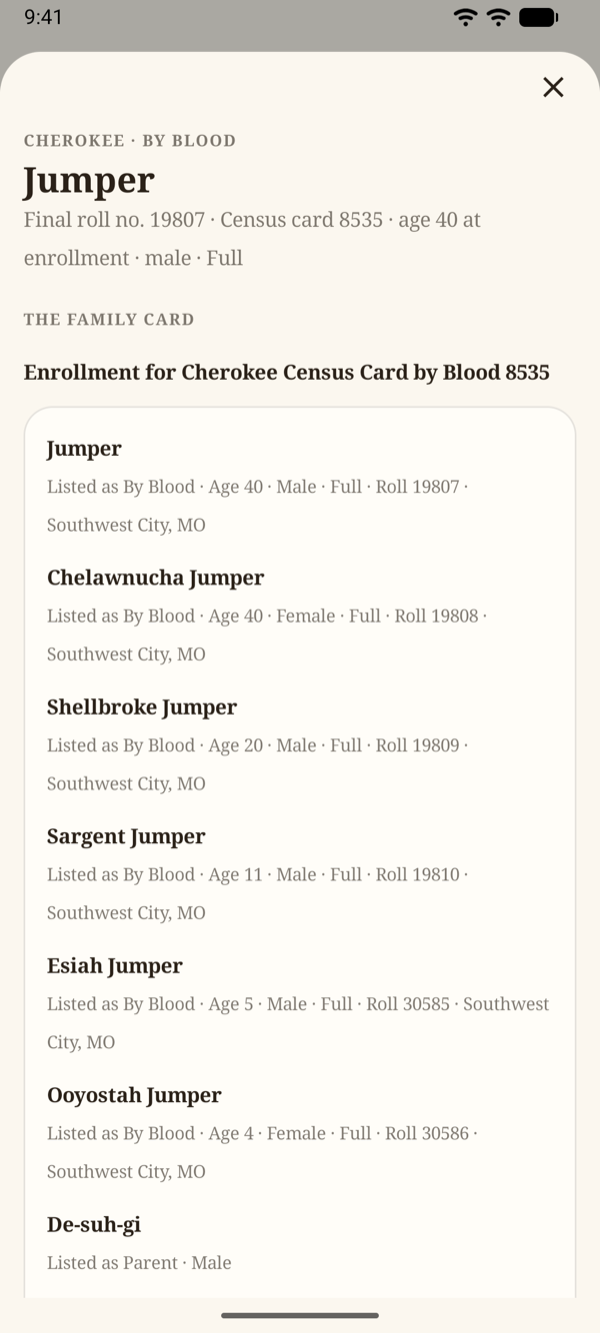
- The family card lists everyone on the same census card, as the Archives transcribed it, and View the original card at the National Archives opens the scanned card in the Archives' catalog, where the record lives
- Below it is everything about this person: their own enrollment, other families' cards that name them as a parent, and the Archives' own cross-references. A few links are machine-read from the card image and labeled that way — verify them on the image
- Every link says which card it leads to, so another entry on this same card is never mistaken for a different card
- If you open a parent named on someone else's card, a box at the top says so — A parent named on this card, not their own enrollment — and links to that parent's own enrollment when one is found
- Where the printed Final Rolls page has been located, Official Final Rolls page (machine-located) opens that page in the National Archives' viewer, at the image number shown on the button — confirm the line on the page
- The rest of the household on the same card comes last, each person linked to their own record
- On a record from one of the other record sets, Search this name in the Dawes Rolls starts a Dawes Rolls search for that name
Records you open from a record stack up, so you can follow a family from card to card and find your way back.
On iPhone: tap the back arrow at the top to return to the previous record, or touch and hold it to list every record you've opened and jump straight to one. A record stays open until you tap Close.
On Android: tap the back arrow at the top, or your phone's Back, to return to the previous record. The history button beside it lists every record under Records opened in this window. Tap ✕ to close the record, or go Back from the first one.
Note: The records search is a research aid, not proof of eligibility. Enrollment is determined solely by sovereign tribal nations, and only they can say who is a citizen.
Your Documents Vault
Documents is a private place for your own family records — census cards, applications, letters, photos of documents. Import them from Photos or from Files (including PDFs of up to 100 pages each), and Native Past reads them on your device.
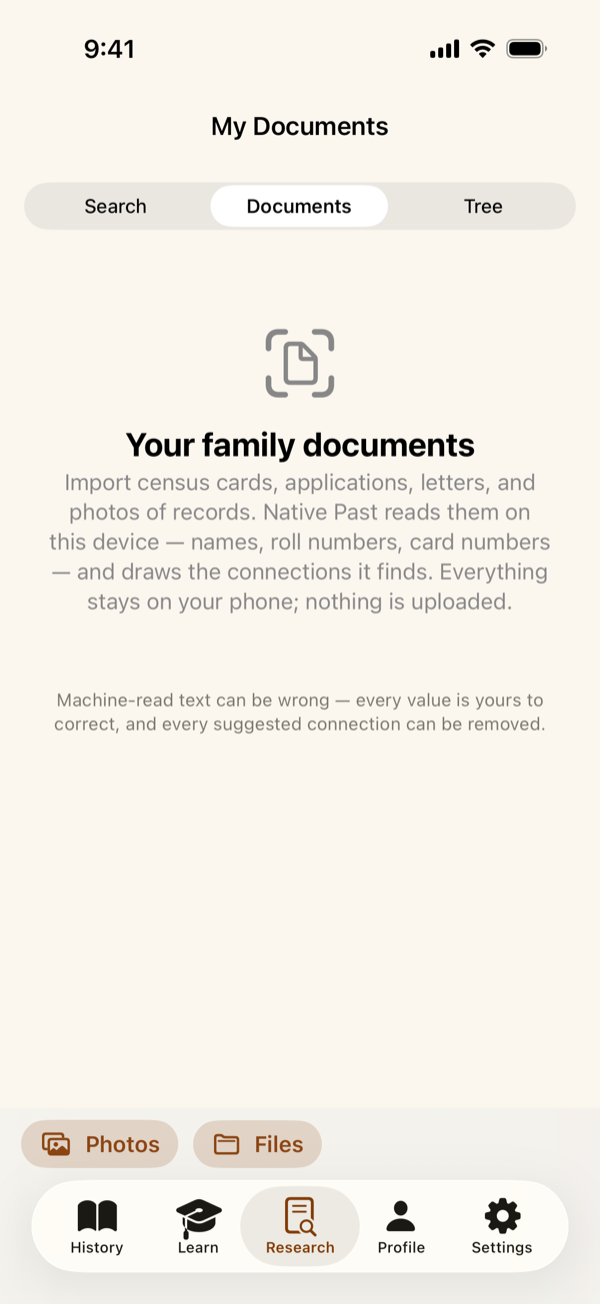
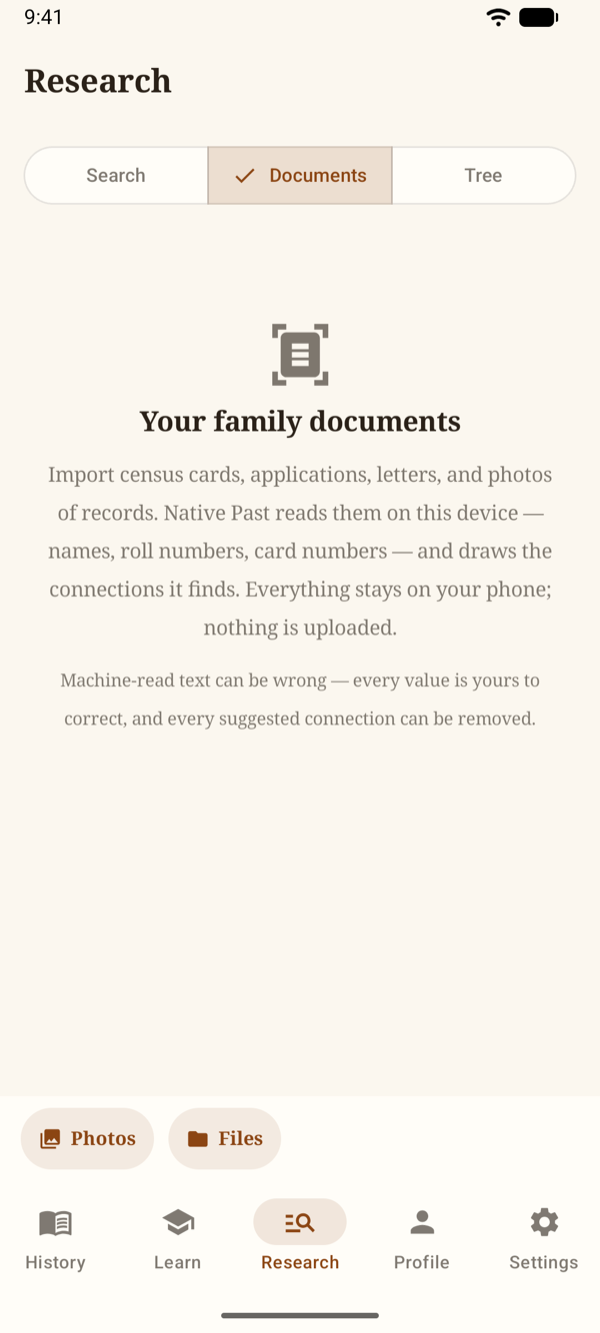
- Files that look like pages of the same record are grouped into one document on a Review import screen — edit the title, combine or separate pages, or drop one — and nothing is saved or read until you tap Import
- The text is read on your phone — names, roll numbers, card numbers, and years become chips under What was read on this document. Machine reading can be wrong, so tap ✕ on anything that isn't right, add facts by hand, or Re-read the pages
- Documents that share a name or a number are joined by a dashed suggested line on the map; a solid line is a connection you drew yourself, with a note on why
- Each document keeps your Notes, and can be deleted along with its links at any time
Yours, always here. Nothing in the vault or the tree is ever uploaded to Native Past. It stays on your phone — and travels only in your own device backup, which belongs to you.
Building Your Family Tree
Tree is a simple family-tree builder. Start with anyone — yourself, a grandparent, an ancestor from a record — and grow outward.
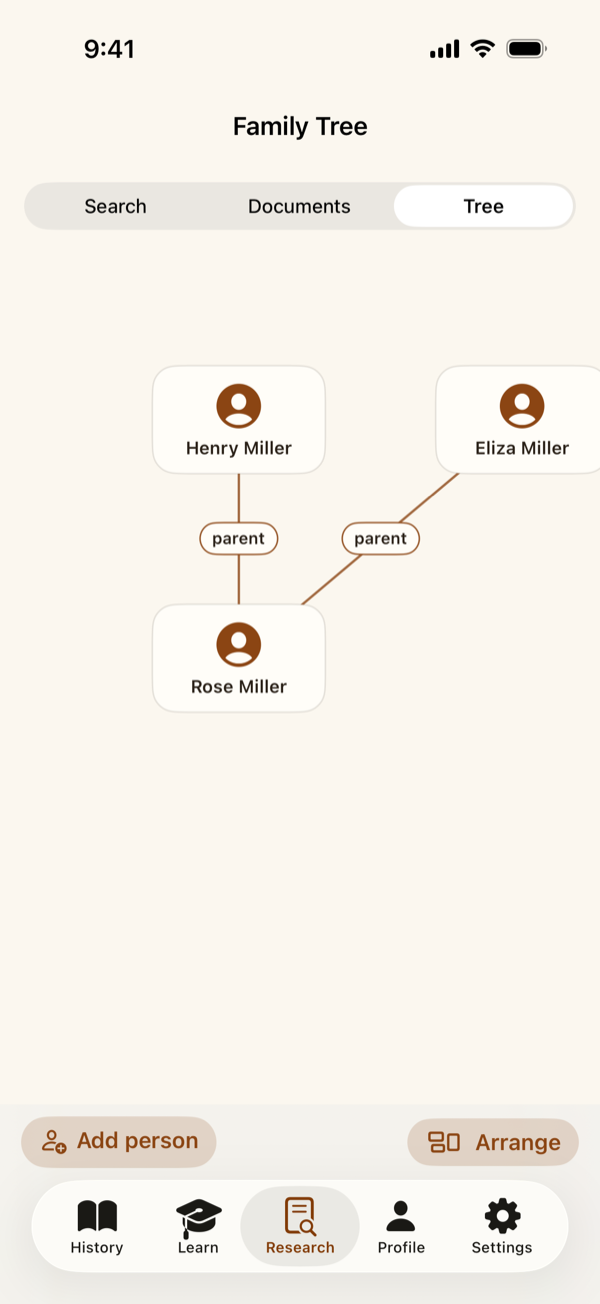
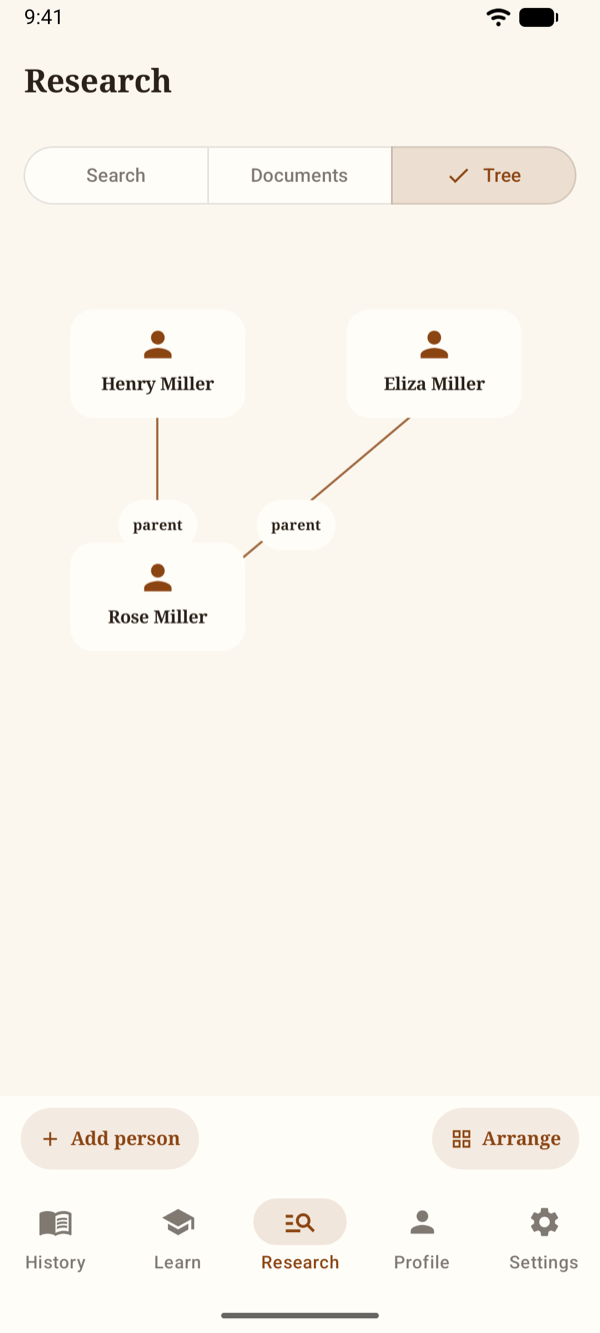
- Add the first person with a name and, if you know them, birth and death years
- From a person's page, Add a parent or Add a child — a new person, or someone already in the tree
- Link documents attaches records from your vault as proof, right on the person's page
- Arrange lays the generations out neatly; drag to pan, pinch to zoom
Profile & Progress
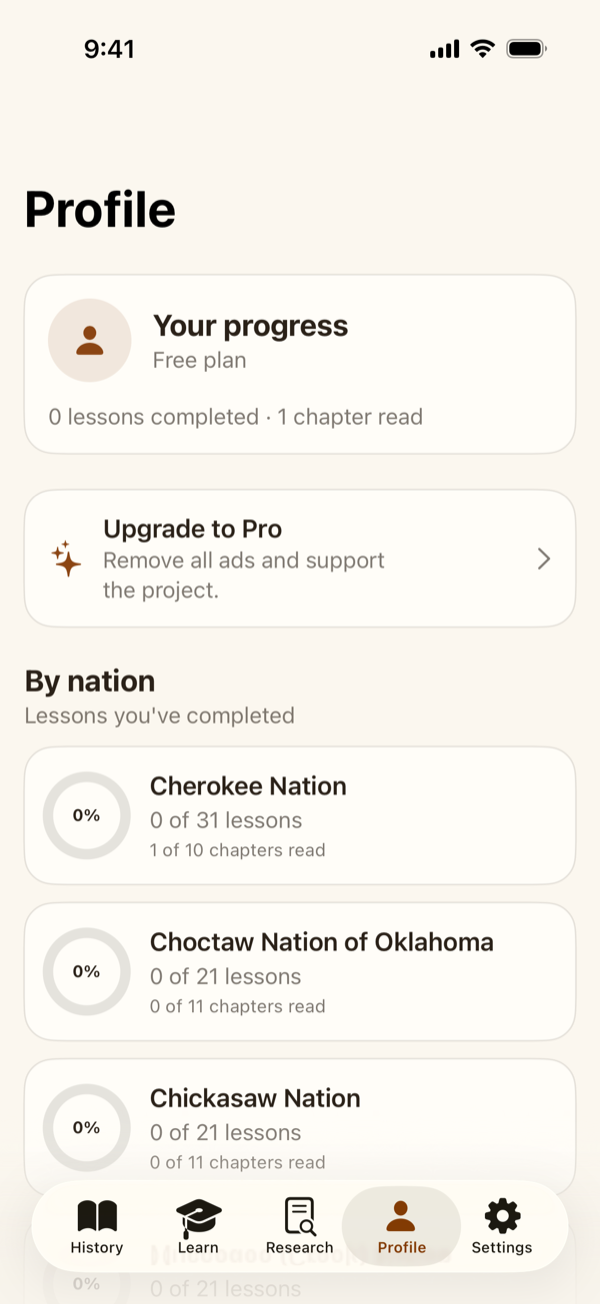
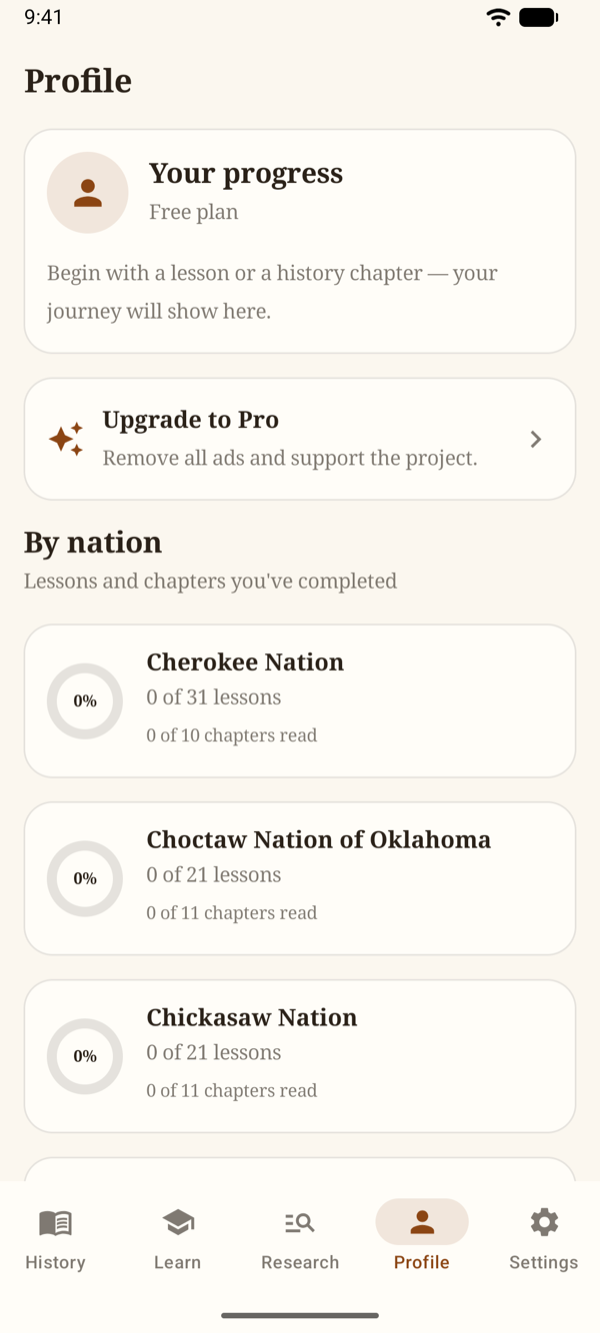
The Profile tab shows your progress in plain words — lessons completed and chapters read, for each nation you've studied — plus a Continue reading card and your Native Past Pro status.
Settings
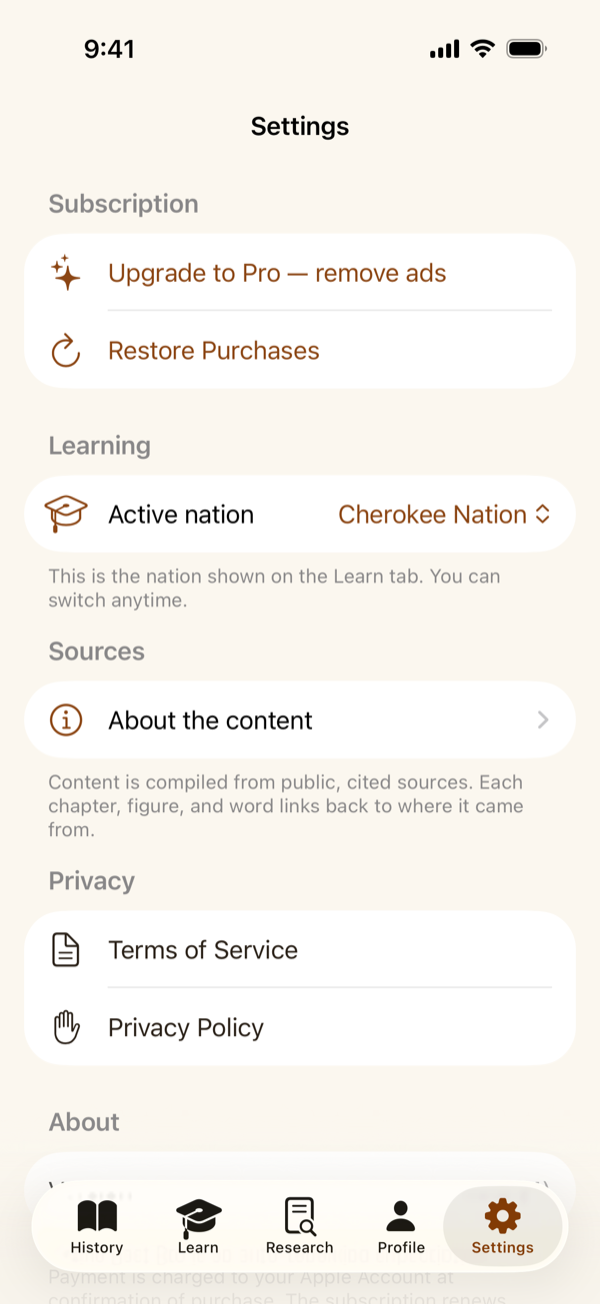
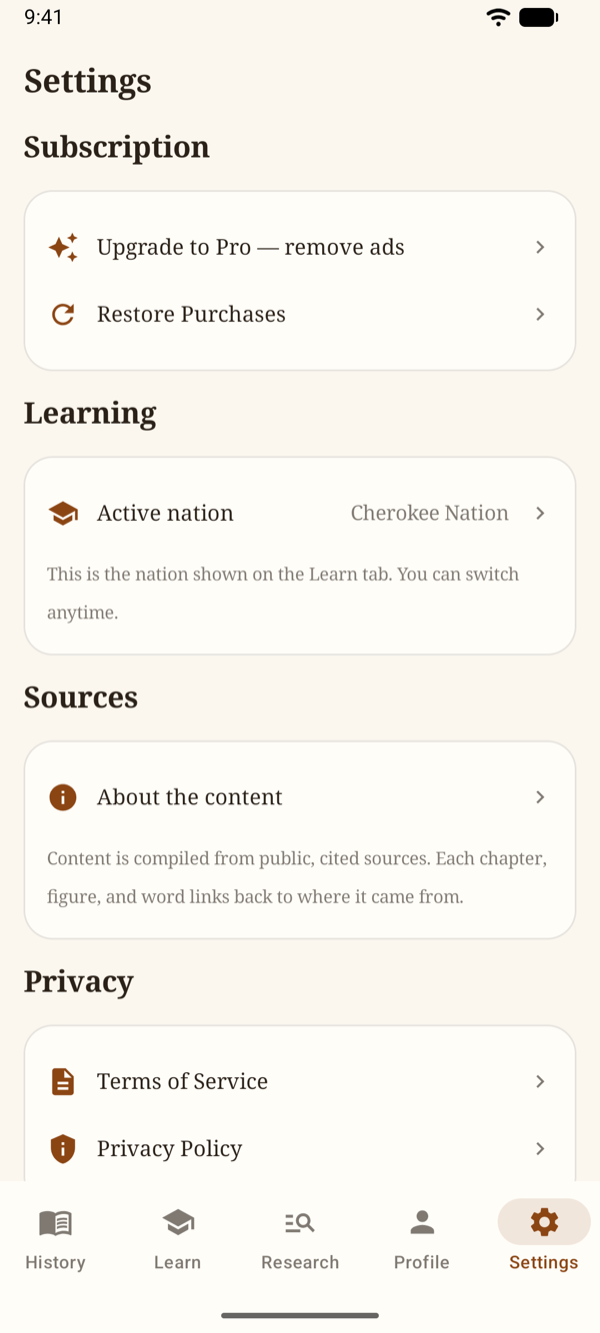
- Learning - your Active nation, the one shown on the Learn tab; switch any time
- Subscription - Native Past Pro, Manage Subscription, and Restore Purchases
- Privacy - the Terms of Service and the Privacy Policy; in the EU, UK, and Switzerland, Privacy options reopens your ad-consent choices
- About the content - the sources policy and the versions of the history and language content on your phone
Native Past in Your Language
Native Past speaks 33 languages — the app, the lessons, and this tutorial. It follows your phone's language, so there's nothing to set inside the app. A Spanish or Japanese phone learns Cherokee with the meanings in Spanish or Japanese.
Translations of the teaching content are made by machine and say so with a small banner: Machine-translated from English — it may contain mistakes. The original, cited English text is the source of record.
On iPhone: Settings → scroll down to Native Past → Language, then choose one.
On Android: Settings → Apps → Native Past → Language, then choose one. On some phones the path is Settings → System → Languages → App languages → Native Past.
This tutorial comes in every language the app speaks — use the Language picker at the top of this page.
Native Past Pro
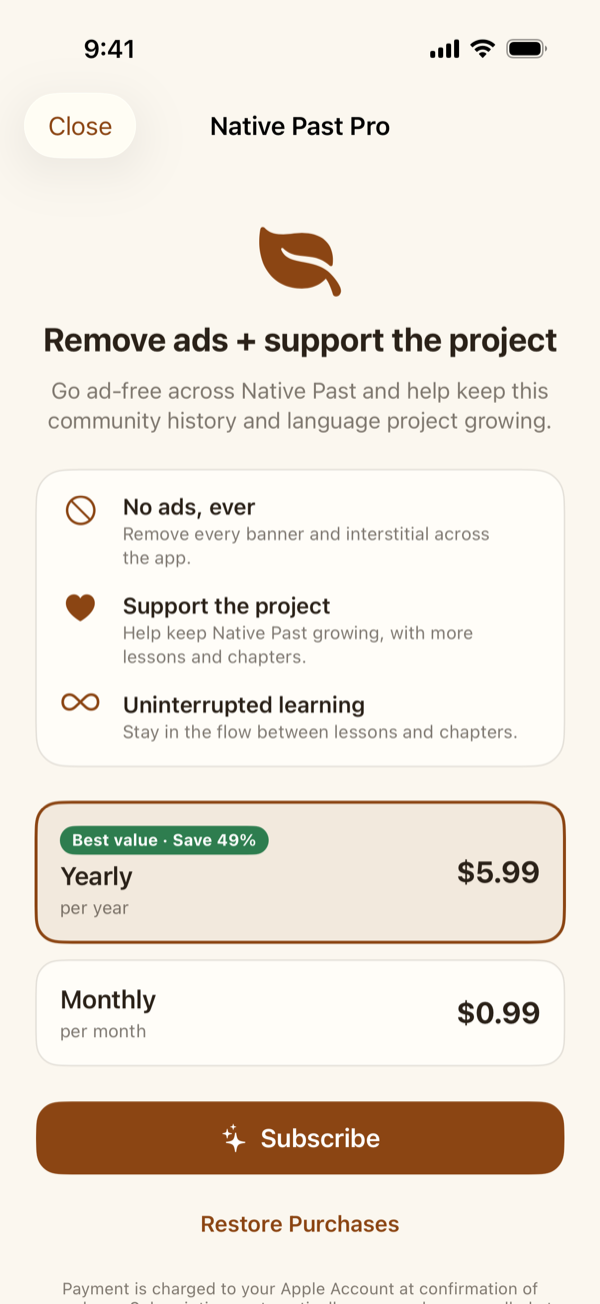
Native Past is free, supported by ads that stay out of the reader and your lessons. Pro removes every ad — nothing else changes, because nothing else was ever held back — and helps keep Native Past growing.
How to subscribe
- Tap Upgrade to Pro — remove all ads at the top of the History, Learn, or Research tab, or the Native Past Pro card on your Profile
- Choose Monthly ($0.99) or Yearly ($5.99)
- Confirm with your app store
If the plans can't load — you're offline, or the store doesn't answer — the Pro screen says so and offers Try again.
Managing your subscription
On iPhone and iPad, subscriptions are managed by the App Store: open the Settings app, tap your name, then Subscriptions, and choose Native Past. Restore Purchases on the Pro screen brings an existing subscription to a new phone.
On Android, subscriptions are managed by Google Play: open the Play Store app, tap your profile picture, then Payments & subscriptions → Subscriptions, and choose Native Past.
Sources, Accuracy & Respect
- Every chapter, story, figure, word, and phrase carries its sources — official nation resources first, then museums, universities, and archives — so anything can be traced back
- Content is compiled from those public, cited sources. A word that can't be verified is left out, not guessed
- Living nations are described in the present tense; sacred or restricted knowledge is never included
- Native Past is not affiliated with or endorsed by any tribal government. If a nation chooses to partner, its guidance refines the content
Found a mistake? Corrections are welcome — write to [email protected] with the nation, the chapter or word, and the source you'd point us to.
Tips & Tricks
- Read first, then learn - a nation's opening chapters make its vocabulary land; the words arrive with their history
- Keep the chart handy - the Start here lessons teach the writing system; View the full chart lets you check a syllable any time
- Practice is free - the Practice card never affects your progress, so use it anywhere
- Search by sound - the records search forgives spelling; try the family name alone first
- Import the pages together - pick every page of a record in one go so they land as one document
- Link the proof - attach a document to a person in the tree the moment you find it